
Wiki-style Navboxes
I've gotten several requests for how I made my navboxes as seen in my Legends of the Dragonguard world. So here's how I made them!
Oh, and a shoutout to Annie Stein for the inspiration of navboxes from her world Solaris!
Note: There's a lot of stuff dealing with tables, so it can get confusing and messy.
Oh, and a shoutout to Annie Stein for the inspiration of navboxes from her world Solaris!
Note: There's a lot of stuff dealing with tables, so it can get confusing and messy.

We'll start with a basic navbox; it's all tables! But first, it would be best to put this in a site variable so you can use it anywhere, or at least the whole navbox BBCode in the Global Article Footer section in your world settings. We will then display the correct navbox based on article tags, so we don't have to keep placing the navbox's code or variable in each article.
Recommended
I recommend putting the BBCode in a normal article first, so you can easily edit and see it, then copy the code to a variable or the Global Article Footer Block. It makes it easier to see if the changes are correct. I have such pages you can actually check out, so if you want to see all of my navboxes in one place, then visit these pages!
(Make sure you force the navbox-wrapper and navboxes to display on the article CSS or it won't show up!)
Navboxes on Legends of the Dragonguard
Navboxes on /dev/null
Navboxes on Root Directory
I recommend putting the BBCode in a normal article first, so you can easily edit and see it, then copy the code to a variable or the Global Article Footer Block. It makes it easier to see if the changes are correct. I have such pages you can actually check out, so if you want to see all of my navboxes in one place, then visit these pages!
(Make sure you force the navbox-wrapper and navboxes to display on the article CSS or it won't show up!)
Navboxes on Legends of the Dragonguard
Navboxes on /dev/null
Navboxes on Root Directory
BBCode
Bulletin Board Code! (Yes, that's what it stands for, did you know that?)
I like to wrap my entire navbox collection in a container called navbox-wrapper so I can select the tables within without messing with other tables on articles. Each navbox has its own container tag to select it for displaying only on articles with a certain tag.
I like to wrap my entire navbox collection in a container called navbox-wrapper so I can select the tables within without messing with other tables on articles. Each navbox has its own container tag to select it for displaying only on articles with a certain tag.
Tip: While you can add your own items to the list within the navbox, it is better to use a tagged list! That way, the navbox gets updated automatically. Check out this amazing guide by Satrium on indexing tags: Advanced uses of Tags .
I tried to do spacing and coloring in the code to make it easier to read.
I tried to do spacing and coloring in the code to make it easier to read.

I will base this on my community navbox. The top row will have two sub-rows, and the bottom row will just be the one row. There are a lot of nesting tables to get it to be this way, so bear with me.
[container:navbox-wrapper] [container:navbox test] [table] [tr][th][spoiler]|[icon:fas fa-fw fa-chevron-down][/spoiler][container:nav-title]Title linked to Category/Article page[/container][/th][/tr] [tr] [td][table][/td] [/tr] [/table] [/container] [/container][tr] [th]Row 1 Header[/th][td][/tr][table][/td][tr] [th]Sub-row 1 Header[/th] [td][tagged:indexing-tag|list|none][/td] [/tr][tr] [th]Sub-row 2 Header[/th] [td][tagged:indexing-tag|list|none][/td] [/tr][/table][tr] [th]Row 2 Header[/th] [td][tagged:indexing-tag|list|none][/td] [/tr][/table]
Yeah, this is a simple one.
To try and explain a little: any time you want to have a 2nd, nested header row, you have to make a new table within the table-cell ([td]) of the parent table-row ([tr]).
The salmon colored table, containing Sub-row 1 and Sub-row 2, is all within the Row 1's table-cell.
The Row 1 and Row 2 are within their own dark orange colored table, which is part of the baseline table's table-cell, colored in orange.
If you don't need any headers like this, then don't add any of the tables of the BBCode above that are within the first orange colored table-cell; just put your tagged list in place of the nested table.
(This is what I do for some of my event navboxes where it doesn't needed a header or more than one row)
(This is what I do for some of my event navboxes where it doesn't needed a header or more than one row)
Anyway, here's what that looks like:
(I filled out some stuff like the tagged lists and linking the title to an article)
Full-Width Headers
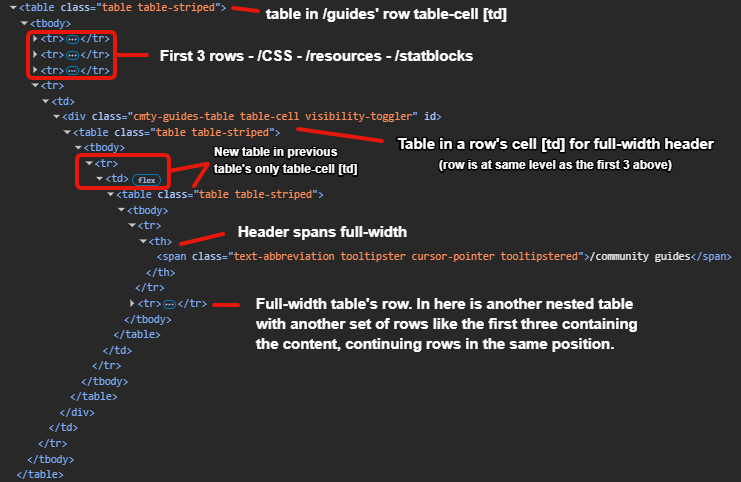
Full-width Header Navbox Row
Looking at the table in the Guides table-cell of the Technical navbox. (Annotated)
You can get a header row to span the entire width of the navbox, kinda like a secondary title bar.
(Like what you see in the Technical navbox at the bottom of this page, or my Dragonguard Structure navbox in the Legends of the Dragonguard world)
It's a pain in the ass, but it can be done.
You have to nest yet another table in the row's table-cell ([td]) you want to have a full-width header. Think of it like you're putting a whole ass navbox in one of the rows, since a navbox has a full-width header for its first row. Yeah, it's just more table stuff.
It's honestly probably easier to understand this if you use the developer window (F12) and look at one of my navboxes.
CSS
You have to add one little bit of CSS if you have a navbox with this. Because it will treat the header row as an only child and apply the CSS we use for the navbox title spoiler bar. I also recommend wrapping your full-width header table in a container and name it, like what I did in the image to the right. (I named it cmty-guides-table)
In the CSS section below, you will see something labeled th:only-child.
Add on to the end of that and make it th:only-child:not(.full-width-table th) or whatever you named that container.
CSS
Oh boy, your favorite part: cascading sheets of style!
I do a bit of things first, before we get into the good stuff, like setting a top margin on the navbox-wrapper, and setting everything to initially hide.
(Because we then show it based on article tags, so the default needs to be hidden!)
(Because we then show it based on article tags, so the default needs to be hidden!)
(I use nesting CSS, by the way)
.user-css-presentation {
 .navbox-wrapper {margin-top: 1.5rem;}
 .navbox-wrapper, .navbox, .navbox .spoiler-card {display: none;}
}
Here's how to get the navbox to display on articles with certain indexing tags. (See: Advanced uses of Tags )
You can put this right under what we just added from the left. (Nested within the .user-css-presentation)
Replace what's in orange with your tags, and what's in salmon with the container names of your navboxes.
You can put this right under what we just added from the left. (Nested within the .user-css-presentation)
Replace what's in orange with your tags, and what's in salmon with the container names of your navboxes.
[class*=nav] .navbox-wrapper,
.tag-nav-test .navbox.test,
:has(.tag-nav-pt1, .tag-nav-pt2) .navbox.test2
{display: block;}
Now for the good stuff! The navbox itself >:)
There's a lot of styling for the table stuff. You can put this right under the tag selecting stuff from above.
Anything labeled as #HEXColor and colored orange, you set your colors to! Additionally, you can, of course, omit some things, like if you don't want a border around your navbox.
(Anything starting with // and colored green are just comments, don't copy them)
.navbox {
 background: #HEXColor;
 border: 1px solid #HEXColor;

 table {
  margin-bottom: 0;
  border-collapse: collapse;
  border: none;

  tr {
   // Header Rows
   th {
    background: #HEXColor;
    padding: 0.5em; // Just a little padding, as a treat
    width: 15%; // You can choose your own header widths
    text-align: center;
    vertical-align: middle;
    border: none; // You can choose what you want to do with borders. I only set a top border for the th:first-of-type
    color: #HEXColor;
    box-shadow: none;
   }

   // For the header that acts as the spoiler button. It should be the only one that is an only-child.
   th:only-child {
    position: relative; // So we can position the spoiler button itself properly later
    font-size: 20px;
    border: none;
   }

   td {
    display: flex; // For super basic navboxes that have no headers,
    align-items: center; // this was the only way that seemed to work
    padding: 0;
   }
  }
 }

 // For the tagged lists
 .tagged-articles-list {
  display: flex;
  flex-wrap: wrap;
  padding: 0.5em;
 }

 // Styling tagged list items
 .article-list-item {display: list-item; margin-inline: 1em;}
 .article-list-item:nth-child(1) {list-style: none; margin-left: 0;} // Remove bullet point for the first item

 // Collapsible Navbox!
 .spoiler-button:hover, .spoiler-button:focus, .spoiler-button:focus:active {background: none;} // Don't want the spoiler button itself to have a background..
 .spoiler-button {
  position: absolute; // Parent has to be relative for this to work the way we want
  background: none;
  color: #HEXColor;
  width: 100%; // We want the button to fill the entire navbox title header
  height: 100%;
  margin: 0;
  padding: 0;
  top: 0; // Top and Right to get it to show up on the right-hand side of the navbox title bar. You can choose to it place it elsewhere.
  right: 0;

  // Or whatever icon you use
  .fa-chevron-down {
   display: flex; // Probably not necessary, but it helped with positioning
   position: absolute;
   top: 1em;
   right: 1em;
  }
 }

 // Rotate icon when spoiler is open
 .spoiler-button[aria-expanded=true] .fas {transform: rotateX(180deg transition: all 0.2s ease-in-out;}
 .spoiler-button[aria-expanded=false] .fas {transform: rotateX(0deg transition: all 0.2s ease-in-out;}

 // Sets the title over the button spoiler. Allows you to click the title link while keeping the rest of the title bar as the "link" to open or close the spoiler.
 .nav-title {position: relative; z-index: 1;}
}

// Collapse Navbox - But don't collapse the first row (title bar)!
.navbox:has(.spoiler-button[aria-expanded=true]) .table tr:not(:first-child)
{display: table-row;}

.navbox:has(.spoiler-button:not([aria-expanded])) .table tr:not(:first-child),
.navbox:has(.spoiler-button[aria-expanded=false]) .table tr:not(:first-child)
{display: none;}
And that's it! Sorry I kinda had to put it all in one thing. I tried to make it easier to read with some coloring and comments.
If you're wondering, "Wait, when did we use a spoiler?" It was at the very top of the BBCode , in the first header cell of the table. We didn't put anything in the spoiler; we only set the title of it and added an icon. We just use the spoiler button's attributes to show and hide the table rows (except for the first row, of course, which is the title bar the spoiler button is in). Also at the top of the CSS , we hid the spoiler's content box.
Live Examples
Here are some worlds that use navboxes, check them out! Their CSS isn't necessarily the same as mine, but we all use the nested tables method.Of course, all of my worlds use them :3
by Annie Stein




You're a saint for doing this. Seriously! TY! <3
Thanks!
> Root Directory is my hub world <
Legends of the Dragonguard • /dev/null
Summer Camp 2026